The DesignBuilder DDF Interop add-in lets you open, edit, and save DesignBuilder Data Files (DDF) directly inside Microsoft Excel. A DDF file is a ZIP archive containing multiple CDT (Component Data Table) files, each representing a different building data table such as Glazing, Materials, Constructions, or Schedules. The add-in unpacks these tables into individual Excel worksheets so you can view and modify the data using familiar spreadsheet tools, then re-export everything back into DDF format.
Accessing the Add-in
Once installed, the add-in registers itself under the Data tab on the Excel ribbon. Look for the DDF button in the DesignBuilder group.
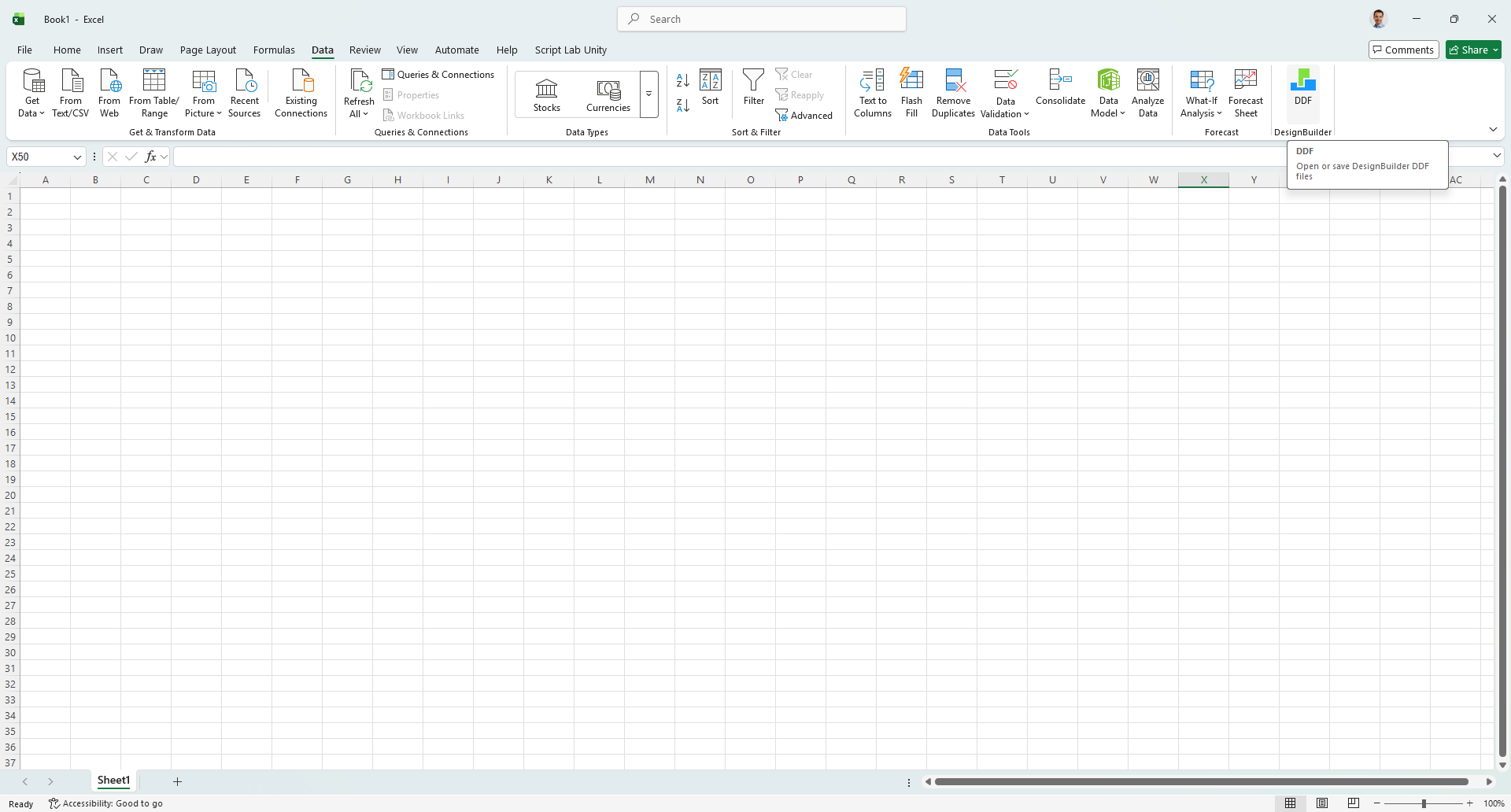
The DDF button in the Data tab on the Excel ribbon.
Clicking the DDF button opens the task pane on the right side of the Excel window. The task pane displays the DesignBuilder logo, a welcome message, and two action buttons: Open DDF File and Save as DDF.
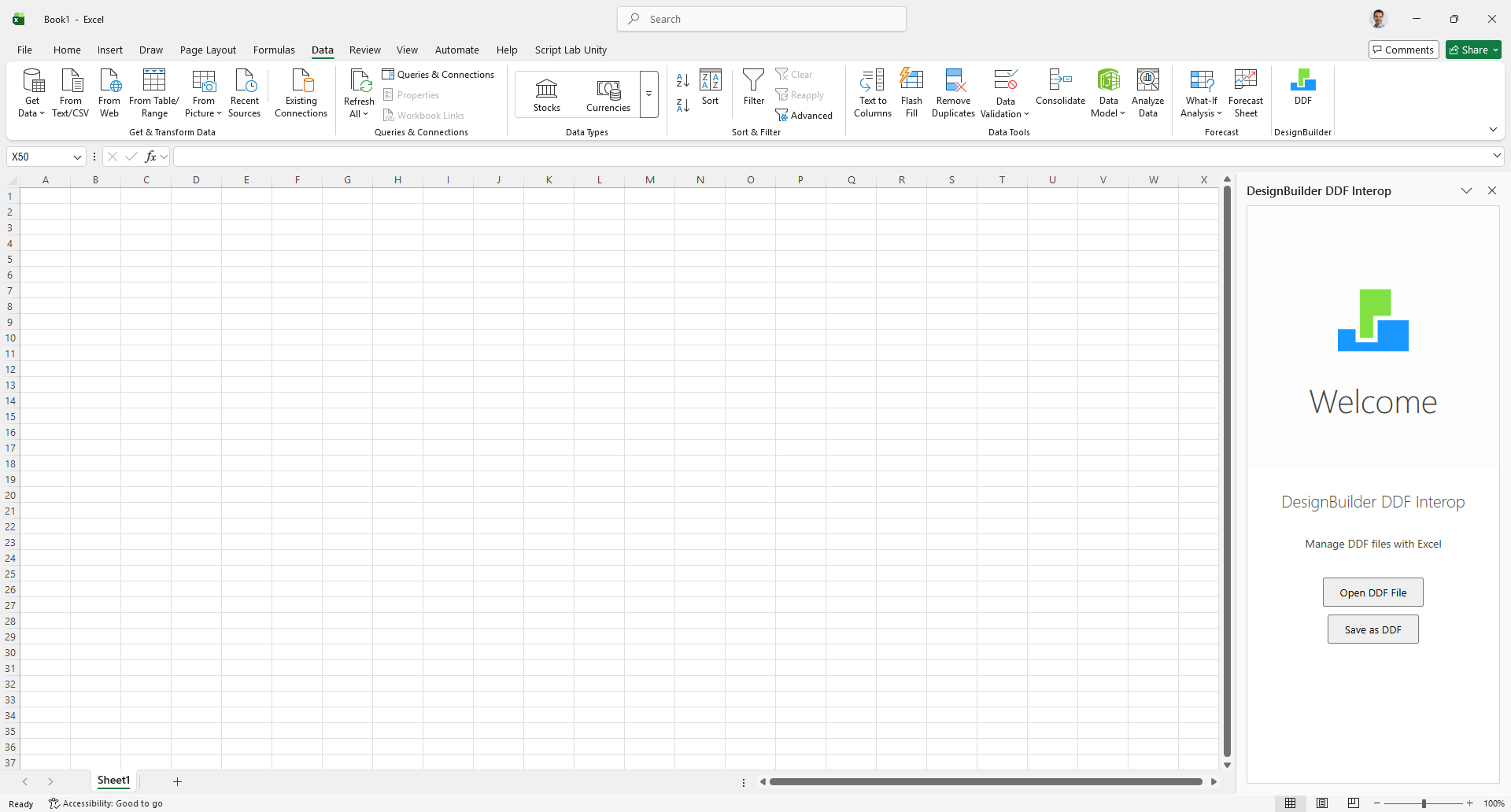
The DDF Interop task pane showing the Welcome screen with Open and Save buttons.
Opening a DDF File
To import a DDF file into Excel, click Open DDF File in the task pane. A standard file picker dialog appears, filtered to show only the .ddf files.
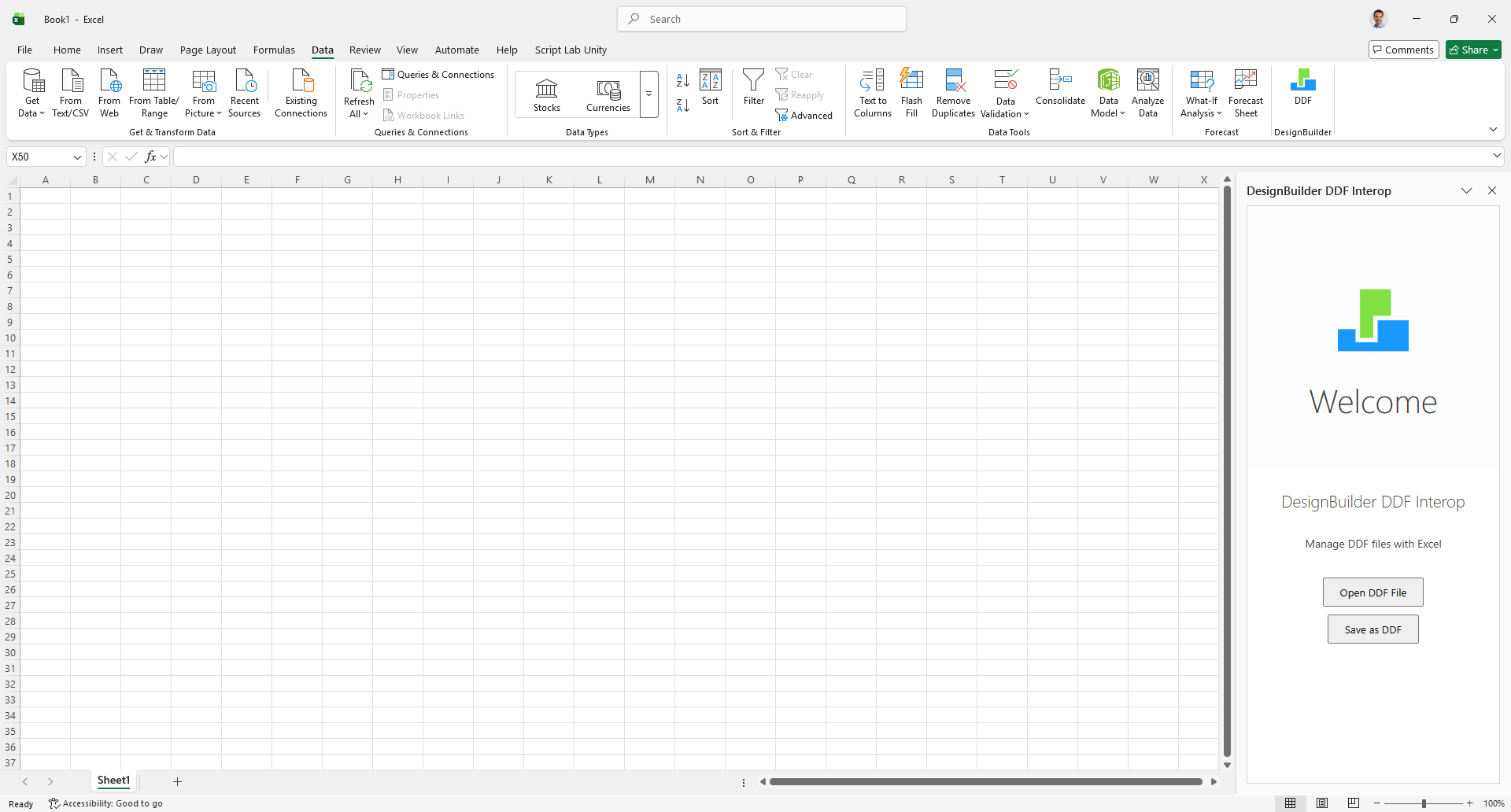
The file picker dialog for selecting a DDF file to open.
Select your file and click Open. The add-in reads the DDF archive, extracts every CDT table it contains, and creates a separate worksheet for each one.
After import, you will see your data laid out across multiple tabs at the bottom of the workbook. The first available table is automatically activated, and the status message in the task pane confirms "Successfully imported DDF file!"
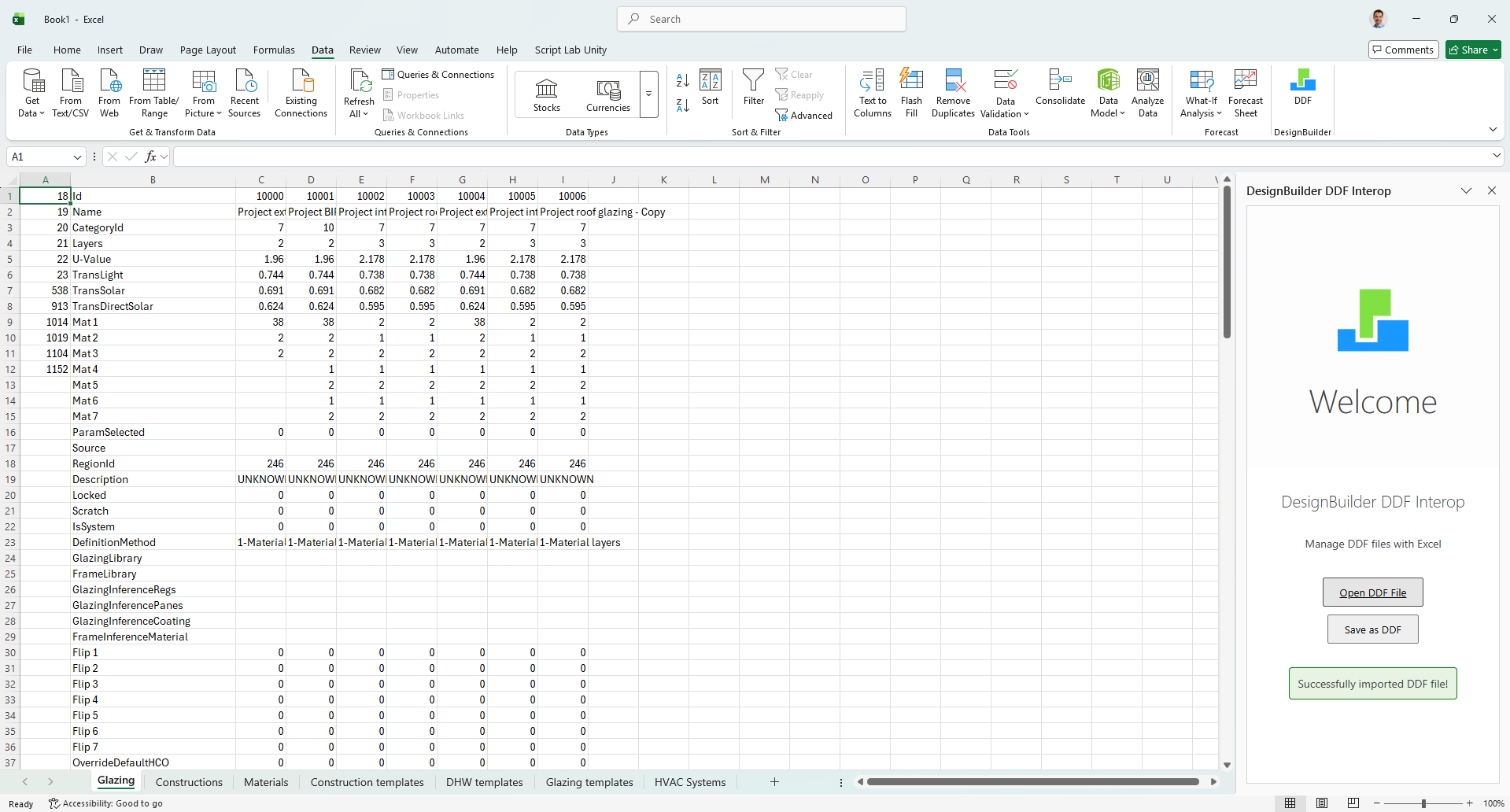
Excel workbook after importing a DDF file, showing data in worksheets with tabs for each table.
The add-in supports up to 25 different table types including Glazing, Panes, Window Gas, Constructions, Materials, Activity templates, Construction templates, DHW templates, Facade templates, Glazing templates, Hourly Weather, Lighting templates, Local shading, Location templates, HVAC Systems, Schedules, HVAC templates, Structural frame constructions, Vents, Holidays, Metabolic rates, Tariffs, Electric load centre, Life Cycle Cost, and Scripts.
Editing Data
Once imported, each worksheet behaves like a normal Excel sheet. You can modify cell values, add or remove rows, and use all the standard Excel features you are used to. The add-in stores attribute names in column B, with data columns starting from column C onward.
Saving as DDF
When you are done editing, click Save as DDF in the task pane. The add-in reads every worksheet in the workbook, converts each one back into CDT format, packages them into a ZIP archive, and prompts you to save the resulting .ddf file.
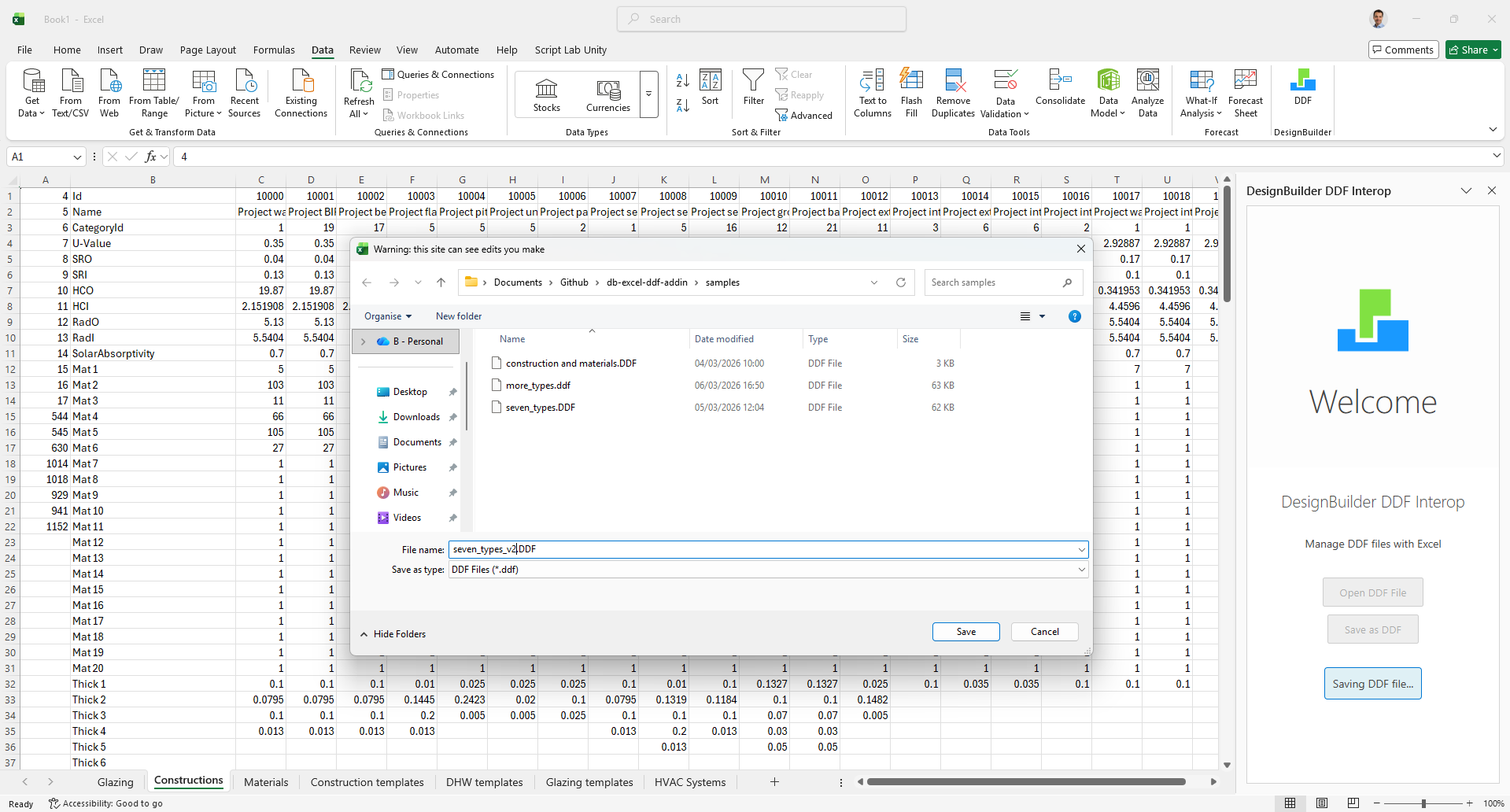
The Save dialog showing the DDF file being exported.
The save dialog remembers the directory and file name of the last opened DDF file, making it easy to overwrite the original or save a new version alongside it. The status message confirms "Successfully exported DDF file!" when the operation completes.
Key Details
Although the add-in itself is hosted on a remote server (Cloudflare Workers), your DDF files are never uploaded or sent anywhere. All parsing, editing, and re-packaging happens entirely within Excel's browser runtime on your local machine. The add-in uses the fflate library for fast, in-browser ZIP compression and decompression — the server only delivers the add-in code, it never sees your data.
Was this article helpful?
That’s Great!
Thank you for your feedback
Sorry! We couldn't be helpful
Thank you for your feedback
Feedback sent
We appreciate your effort and will try to fix the article