After updating DesignBuilder, the following message appears every time a simulation is run, rather than only once.
Install on Demand: EnergyPlus not installed
Previously this appeared only once, but it now pops up at the start of every simulation:
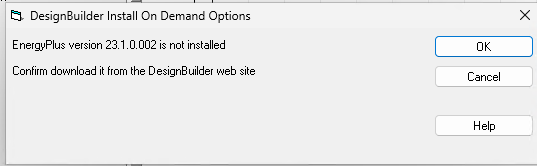
- Cause:
The DesignBuilder installation does not update a registry entry used by the DesignBuilder JobServer service. The EnergyPlusVersionsPath value does not point to the folder containing the installed EnergyPlus versions, so DesignBuilder treats EnergyPlus as missing and prompts to install it on each simulation.
- Resolution:
1. Open Registry Editor (regedit) and go to:
Computer\HKEY_LOCAL_MACHINE\SOFTWARE\WOW6432Node\DesignBuilder\JobServer
2. Check the EnergyPlusVersionsPath value. It should point to:
C:\ProgramData\DesignBuilder\JobServer\versions\
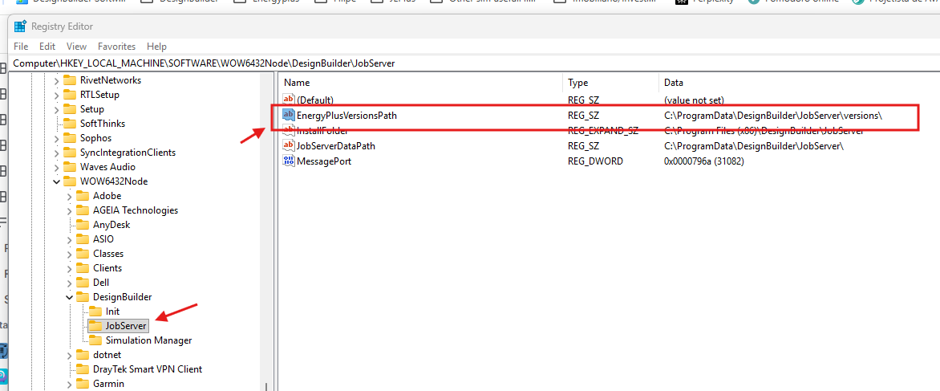
3. If the EnergyPlusVersionsPath value is missing, create it:
- Right-click the JobServer key in the left-hand pane and select New > String Value.
- Name the new value EnergyPlusVersionsPath.
- Double-click it, enter C:\ProgramData\DesignBuilder\JobServer\versions\ in the Value data field and click OK.
- If the JobServer key itself is missing then reinstall DesignBuilder.
4. If the value already exists but does not match the path above, double-click it and correct the Value data.
5. Close Registry Editor, then restart DesignBuilder and run the simulation again.
Note that it is worth backing up the key before making any changes, using File > Export in Registry Editor.
Was this article helpful?
That’s Great!
Thank you for your feedback
Sorry! We couldn't be helpful
Thank you for your feedback
Feedback sent
We appreciate your effort and will try to fix the article